

The three channels
Notification categories
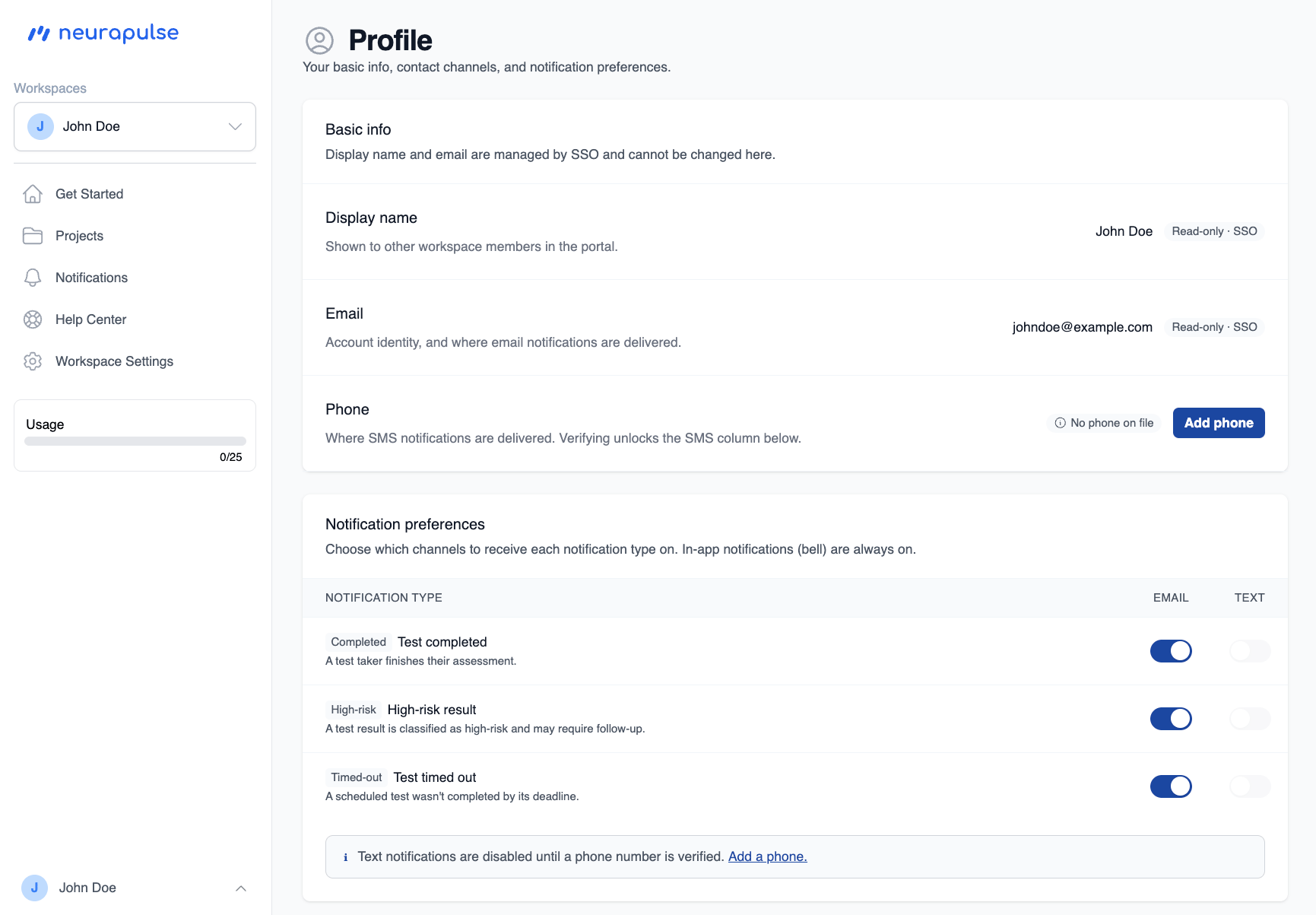
Every category shows up in your in-app inbox. Whether it also emails or texts you depends on the toggles on your profile.
Configuring your preferences
- Open your Profile from the popover menu at the bottom-left of the sidebar.
- Scroll to the Notification preferences card.
- Toggle Email or Text on or off for each category. Changes save as you toggle.
The Notifications inbox
How you reach the inbox depends on your screen size:- Desktop. Click the Notifications link in the sidebar. A blue unread badge appears next to the link when you have new items. The link opens the full
/notificationspage with every item from the last 30 days. - Mobile. The sidebar collapses into a top bar with a bell icon. Tapping the bell opens a full-height drawer from the right with your recent items. A red badge on the bell shows the unread count (up to 9+). To see the full history, tap View all → at the bottom of the drawer (or open the hamburger menu and use the Notifications link).
- Category label (top)
- Title and a one- to two-line body
- Relative timestamp (for example, “3 hours ago”)
- An unread indicator (faint background tint and small blue dot) when you haven’t viewed it yet
- A trash icon to acknowledge and remove the item
Deep links from SMS
Every text message includes a short branded link (for example,go.neurapulse.com/aB3xK9). Tapping the link opens the portal - sign in if your session has expired - and drops you on the /notifications page focused on that one notification.
The link itself is just a filter, not a credential - you’ll always be asked to sign in before any details are shown.
Privacy of text messages
Text messages tell you the notification category and the project name so you know which assessment the alert refers to. They never include test taker names, results, scores, or any other personally identifying information. The link opens the portal, where you must sign in before any details are shown.
Always-on in-app delivery
Test completed, high-risk result, and test timed out notifications all appear in your Notifications inbox, regardless of your email and text settings. The inbox is the safety net - even if every channel is off, nothing slips past you inside the portal.