> ## Documentation Index
> Fetch the complete documentation index at: https://help.neurapulse.com/llms.txt
> Use this file to discover all available pages before exploring further.
# Setting up a Paid Account
> The billing page allows you to manage your subscription plan, payment methods, billing information, and usage for your Neurapulse account.
## Accessing Billing Settings[](#accessing-billing-settings "Direct link to Accessing Billing Settings")
To access your billing settings:
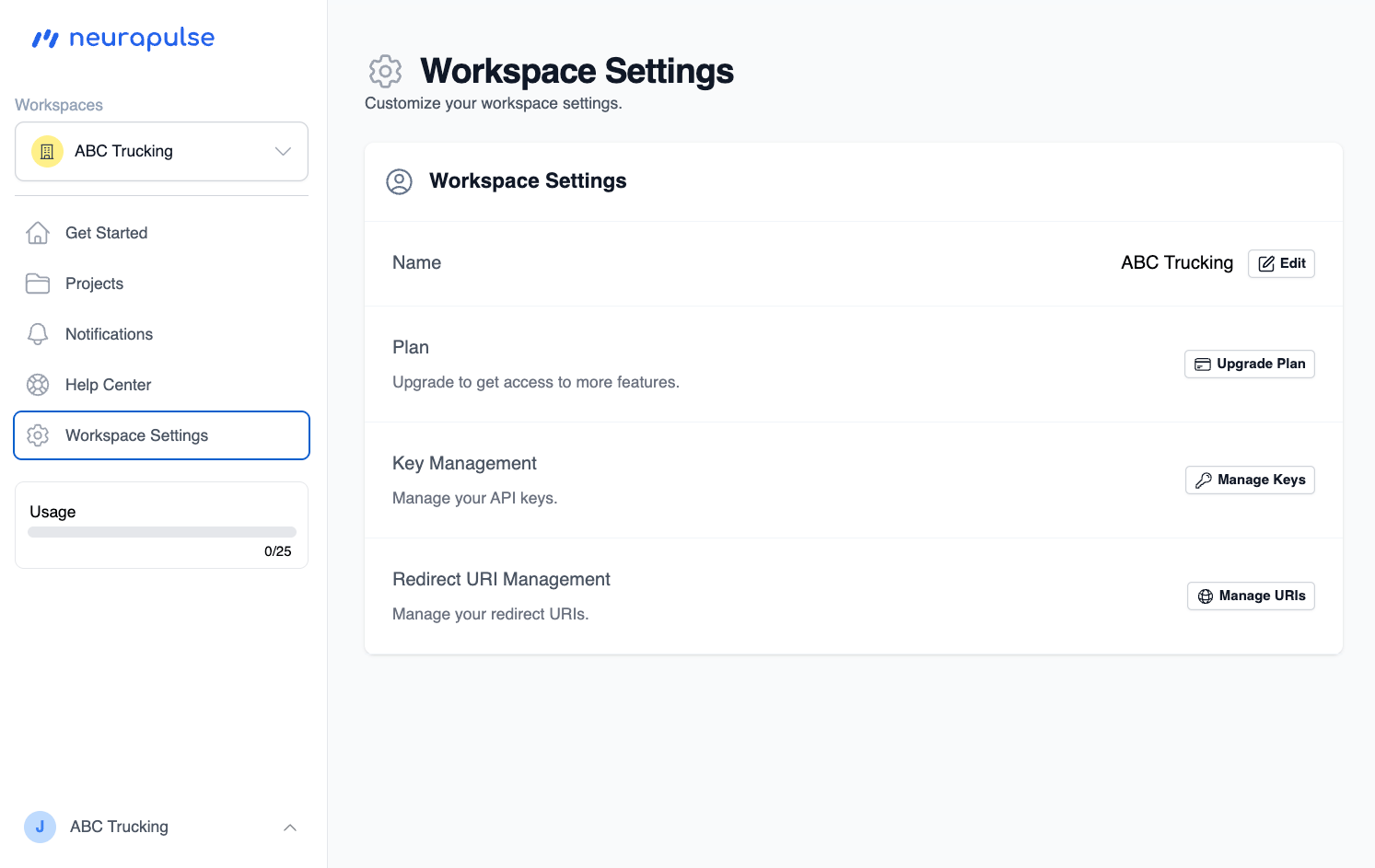
1. Click on "Workspace Settings" in the left sidebar
2. Click on the "Upgrade Plan" button
 ## Available Plans[](#available-plans "Direct link to Available Plans")
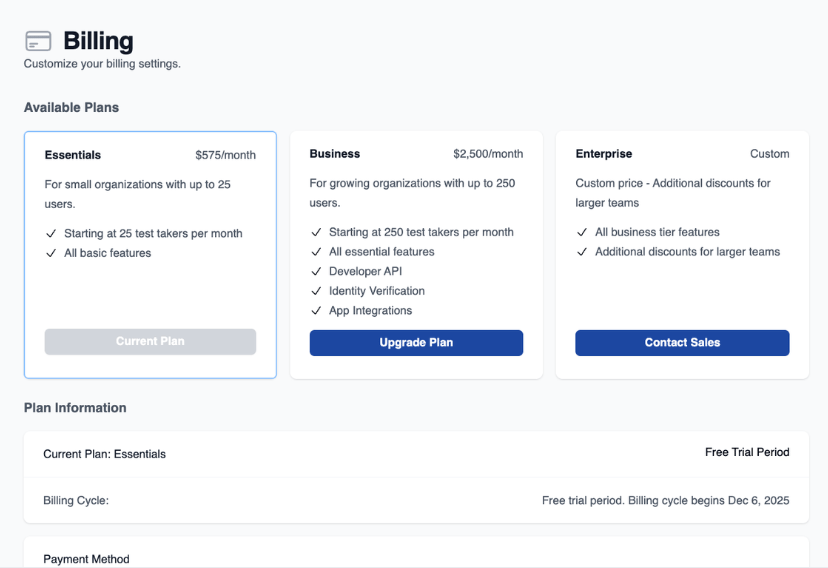
Neurapulse offers multiple subscription plans to meet the needs of different organization sizes. For small to medium sized business, the Business plan can be an ideal one-click upgrade. For larger plan requirements, click the `Contact Sales` button to get a quote. Larger plans improve the marginal costs per test taker.
## Available Plans[](#available-plans "Direct link to Available Plans")
Neurapulse offers multiple subscription plans to meet the needs of different organization sizes. For small to medium sized business, the Business plan can be an ideal one-click upgrade. For larger plan requirements, click the `Contact Sales` button to get a quote. Larger plans improve the marginal costs per test taker.
 ### Adding a Payment Method[](#adding-a-payment-method "Direct link to Adding a Payment Method")
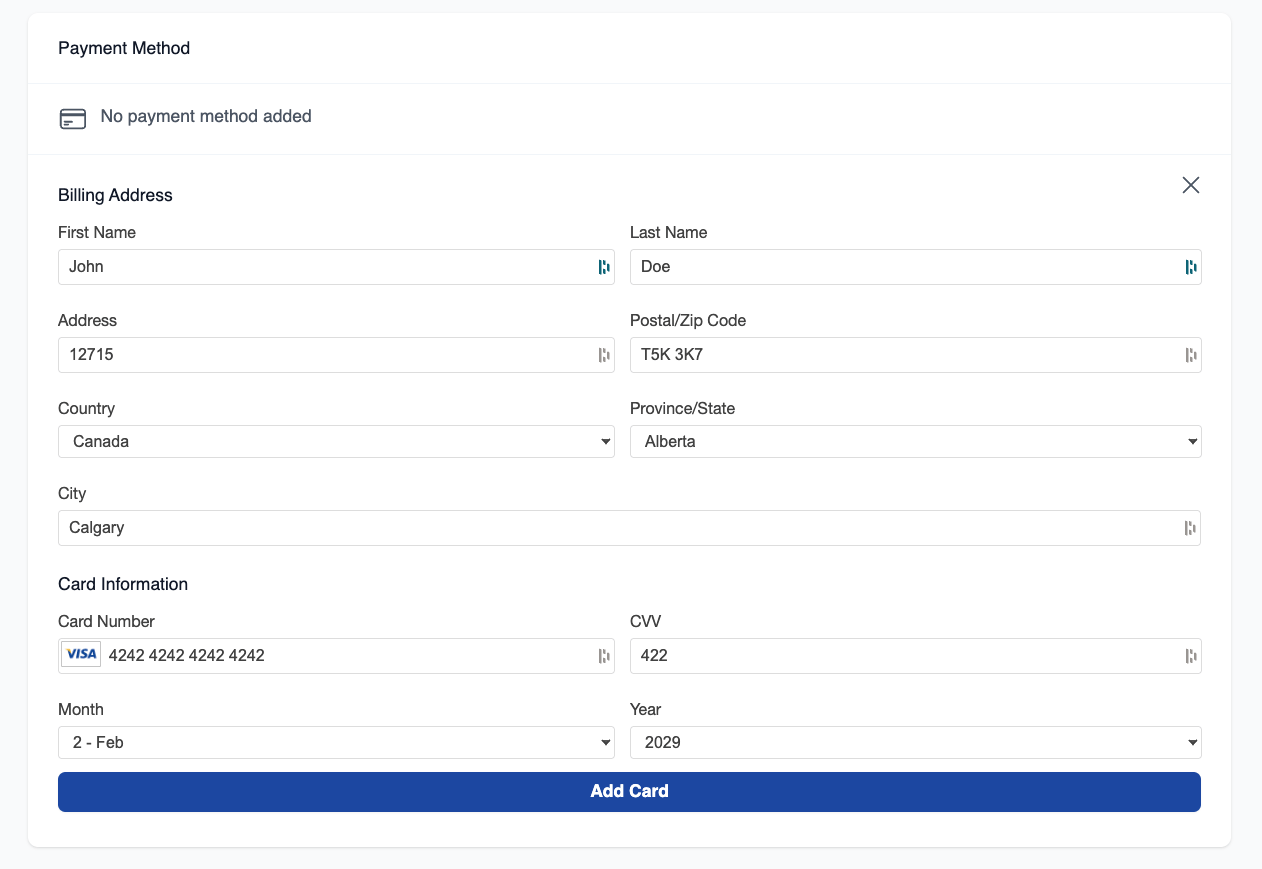
To add a payment method:
1. Click the "+ Add Payment Method" button
2. Enter your billing address information:
* First Name and Last Name
* Address
* Postal/Zip Code
* Country
* Province/State
* City
3. Enter your card information:
* Card Number
* CVV
* Expiration Month and Year
4. Click "Add Card" to save your payment information
### Adding a Payment Method[](#adding-a-payment-method "Direct link to Adding a Payment Method")
To add a payment method:
1. Click the "+ Add Payment Method" button
2. Enter your billing address information:
* First Name and Last Name
* Address
* Postal/Zip Code
* Country
* Province/State
* City
3. Enter your card information:
* Card Number
* CVV
* Expiration Month and Year
4. Click "Add Card" to save your payment information
 An email will be sent to the email address on file to confirm the payment method.
### Viewing Your Current Plan[](#viewing-your-current-plan "Direct link to Viewing Your Current Plan")
Your current plan is displayed in the billing section, along with:
* Plan name and details
* Billing cycle information
* Free trial period information (if applicable)
### Upgrading Your Plan[](#upgrading-your-plan "Direct link to Upgrading Your Plan")
To upgrade your subscription:
1. Click the "Upgrade Plan" or "Contact Sales" button in your desired plan
2. Review your billing information and payment method
3. Click "Upgrade Now" to confirm the changes
An email will be sent to the email address on file to confirm the payment method.
### Viewing Your Current Plan[](#viewing-your-current-plan "Direct link to Viewing Your Current Plan")
Your current plan is displayed in the billing section, along with:
* Plan name and details
* Billing cycle information
* Free trial period information (if applicable)
### Upgrading Your Plan[](#upgrading-your-plan "Direct link to Upgrading Your Plan")
To upgrade your subscription:
1. Click the "Upgrade Plan" or "Contact Sales" button in your desired plan
2. Review your billing information and payment method
3. Click "Upgrade Now" to confirm the changes
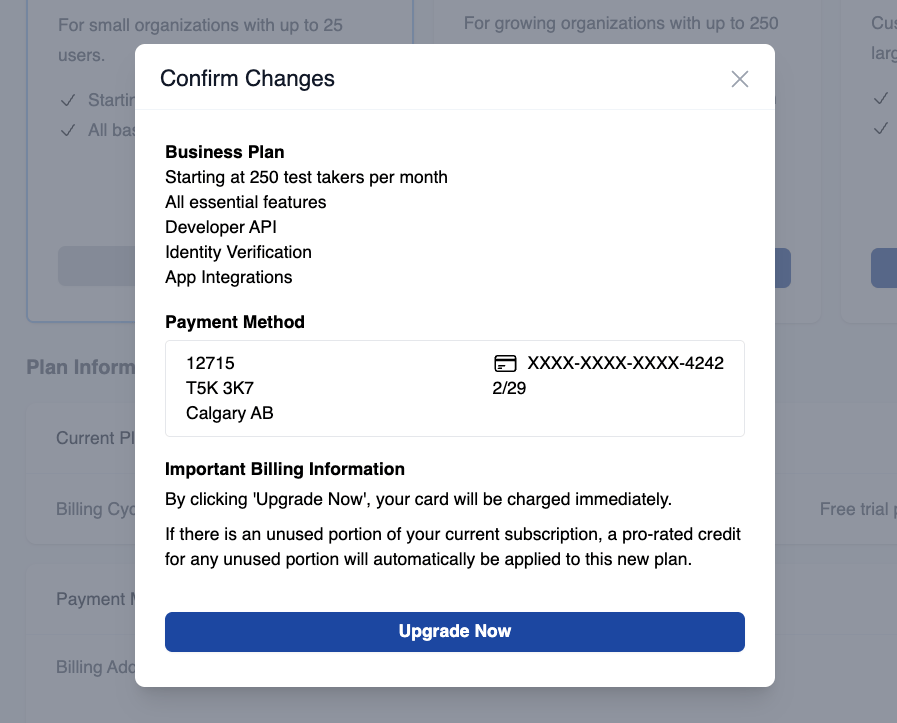 When upgrading your plan, your new billing cycle will begin immediately and
your card will be charged.
## Billing Information[](#billing-information "Direct link to Billing Information")
Your billing information includes:
* Billing address
* Payment information (masked card number and expiration date)
* Current billing cycle
The information entered on the billing page is used to process your payment
and is not shared with anyone except for the payment processor (Maxio).
Neurapulse does not store your payment information.
#### Updating Payment Information[](#updating-payment-information "Direct link to Updating Payment Information")
To update your payment method:
1. Click the "Update Payment Method" button
2. Follow the prompts to enter new payment information or edit existing details
## Usage[](#usage "Direct link to Usage")
The sidebar displays your current usage, showing how many test takers you've used out of your plan's allocation. This is calculated by the number of unique test takers who have taken at least one test during your current billing cycle. Your billing cycle dates are shown beneath the Usage meter in the sidebar.
When upgrading your plan, your new billing cycle will begin immediately and
your card will be charged.
## Billing Information[](#billing-information "Direct link to Billing Information")
Your billing information includes:
* Billing address
* Payment information (masked card number and expiration date)
* Current billing cycle
The information entered on the billing page is used to process your payment
and is not shared with anyone except for the payment processor (Maxio).
Neurapulse does not store your payment information.
#### Updating Payment Information[](#updating-payment-information "Direct link to Updating Payment Information")
To update your payment method:
1. Click the "Update Payment Method" button
2. Follow the prompts to enter new payment information or edit existing details
## Usage[](#usage "Direct link to Usage")
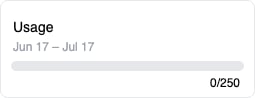
The sidebar displays your current usage, showing how many test takers you've used out of your plan's allocation. This is calculated by the number of unique test takers who have taken at least one test during your current billing cycle. Your billing cycle dates are shown beneath the Usage meter in the sidebar.
 ## Free Trial[](#free-trial "Direct link to Free Trial")
If you're on a free trial:
* The trial period will be clearly displayed
* The trial end date will be shown
* You'll need to add a payment method before the trial ends to continue using Neurapulse
Remember to update your billing information before your free trial ends to
ensure uninterrupted test access in your projects.
## Free Trial[](#free-trial "Direct link to Free Trial")
If you're on a free trial:
* The trial period will be clearly displayed
* The trial end date will be shown
* You'll need to add a payment method before the trial ends to continue using Neurapulse
Remember to update your billing information before your free trial ends to
ensure uninterrupted test access in your projects.