> ## Documentation Index
> Fetch the complete documentation index at: https://help.neurapulse.com/llms.txt
> Use this file to discover all available pages before exploring further.
# Portal overview
The Neurapulse portal is your central hub for managing test takers.
### Main Navigation
The sidebar groups everything you need to reach day-to-day:
* **Get Started:** Your dashboard - top priorities, safety metrics, and the test taker table
* **Projects:** Create and manage assessment projects
* **Notifications:** The full notifications inbox. A blue unread badge appears next to this link when you have unread items
* **Help Center:** Access documentation and support
* **Workspace Settings:** Workspace name, plan, API keys, and redirect URIs
Your **name and avatar** sit in the bottom-left of the sidebar. Click it to open the account popover, which contains:
* **Profile** - your personal info, phone verification, and notification preferences. See [Your Profile](/docs/Getting-Started/profile).
* **Sign out** - ends your session.
### Getting to notifications
* **On desktop**, open the **Notifications** link in the sidebar. The blue unread badge next to the link tells you when new items have arrived. The link takes you to the full `/notifications` inbox.
* **On mobile**, the sidebar collapses into a top bar. A bell icon in that top bar opens a full-height drawer from the right with your recent items. A red badge on the bell shows the unread count (capped at **9+**). To see the full history, tap **View all →** at the bottom of the drawer (or open the hamburger menu and use the **Notifications** link).
### Dashboard Features
* **View Top Priorities:** Review your top priorities, like test takers that are high risk
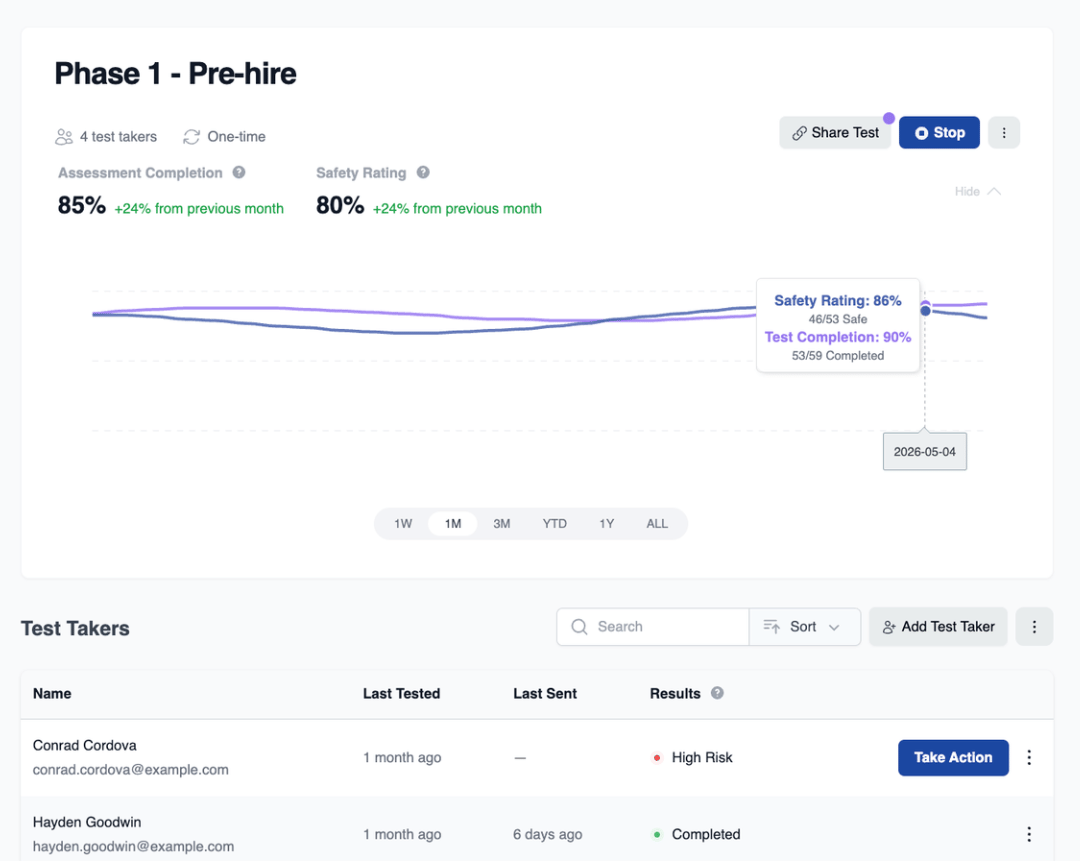
* **Safety Metrics:** Monitor overall cognitive safety trends
## Key Metrics
* Safety Rating
* Test Completion Rate
 ## Test Taker Table
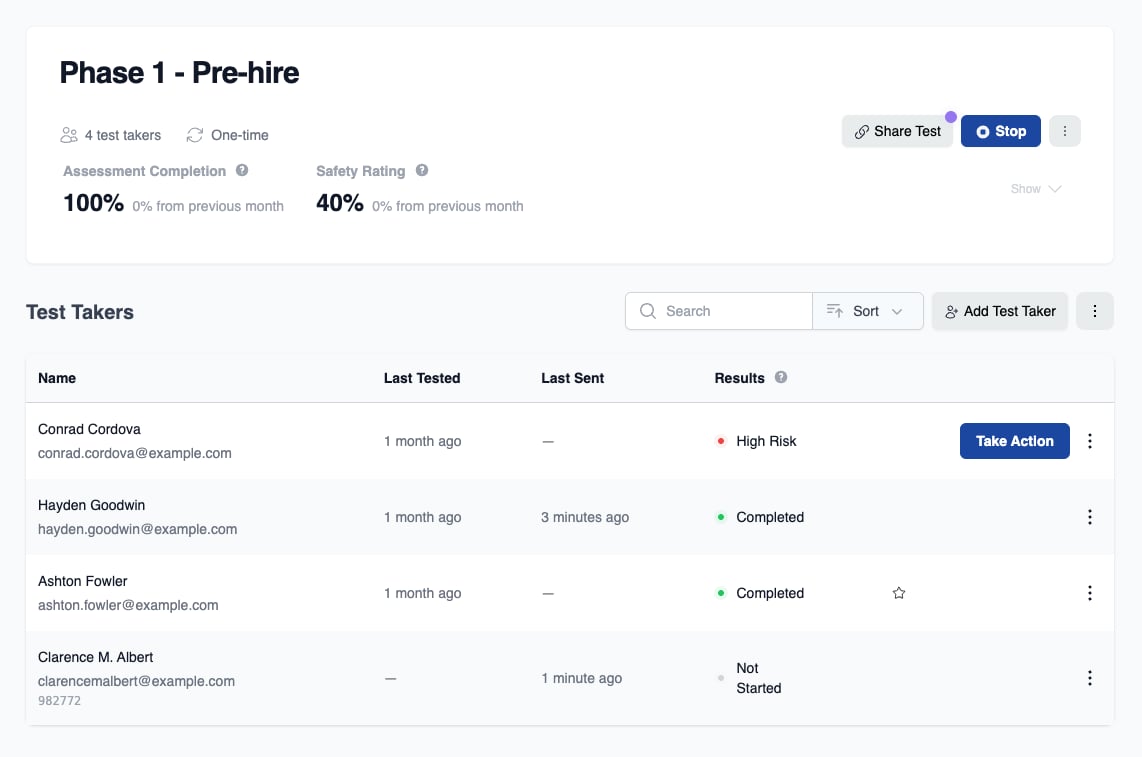
* See test taker results sorted by priority
* Watch updates in realtime as test takers complete their test.
* The **Last Tested** and **Last Sent** columns show relative dates (for example, "3 days ago") so you can quickly see who needs attention. Tap or hover the date to see the exact timestamp. An em dash (-) means no date is available; tap or hover it for an explanation.
## Test Taker Table
* See test taker results sorted by priority
* Watch updates in realtime as test takers complete their test.
* The **Last Tested** and **Last Sent** columns show relative dates (for example, "3 days ago") so you can quickly see who needs attention. Tap or hover the date to see the exact timestamp. An em dash (-) means no date is available; tap or hover it for an explanation.